CSV to ICS Converter
Turn a CSV schedule into calendar events. Convert an event list locally, or use AI to read a flexible layout. Review your events before downloading one calendar file.
Local conversion is free, with no account or credits required. CSV or TSV up to 2 MB and 5,000 event rows.
Use your existing CSV or TSV layout: grids, calendars, rosters, agendas, multiple tables, or event lists. AI reads the available context, then you edit missing or uncertain details in the preview. No template required.
AI recognition uses 1 credit per successful conversion, or an available guest trial. Editing and downloading the result are free. View AI pricing.
CSV or TSV up to 2 MB. AI reads cell data with row and column positions. Up to 100 events per result; large files may need splitting.
How to convert a CSV event list locally
- Add your CSV scheduleExport your spreadsheet as CSV UTF-8, then choose the file or paste its contents above. Include a header row and one event per row.
- Match columns and check datesConfirm the event title and start date columns. For timed events, include both start and end times. Choose the date format and open Time zone to select the zone used by your schedule.
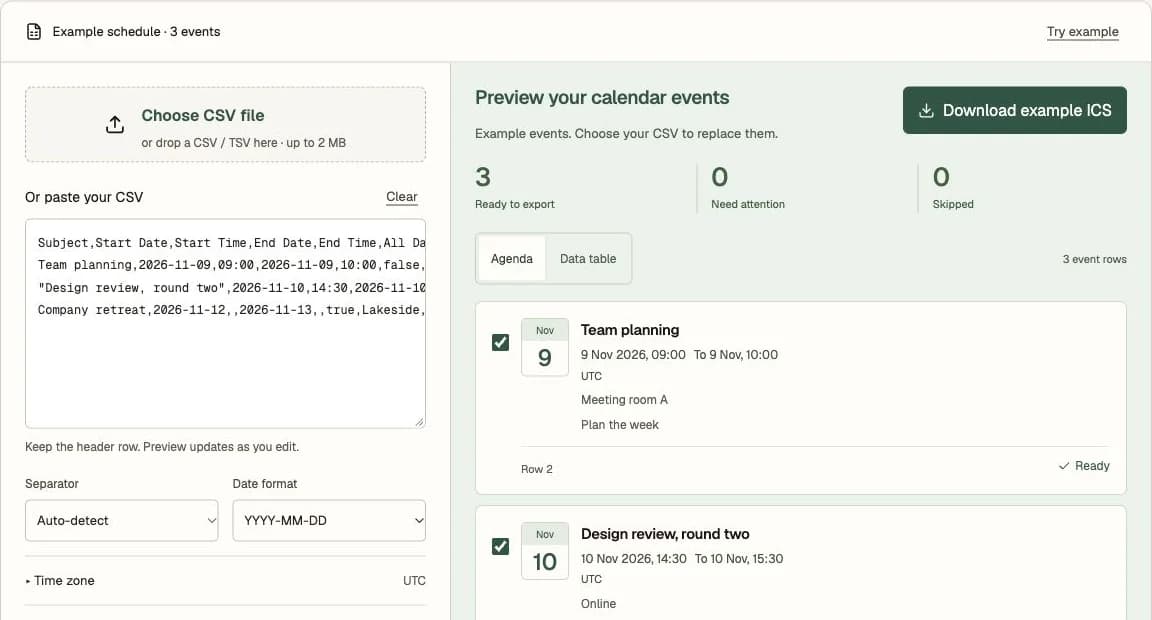
- Review and downloadCheck dates, times, and locations in Agenda or Data table view. Resolve any selected rows marked with errors. Download one ICS file containing your selected events, then import it into your calendar.
How to use AI recognition
- Upload your existing CSVChoose AI recognition and open a CSV or TSV. No fixed header row or column mapping is required. Starting recognition uses your available conversion allowance.
- Edit the extracted eventsCheck dates, times, time zones, and repeat rules. Fill in missing details in the event editor, then select the events you want to include.
- Download your reviewed calendarSelect the events you want, download the ICS, and import it into your calendar. Editing and downloading the same result use no additional credits.
Column format for local CSV conversion
For Local conversion, each row becomes one calendar event. Column order does not matter: common headings are matched automatically, and Match columns lets you assign other names. Upload your own CSV or paste it above; the downloadable template is optional.
The sample schedule above makes two timed meetings and a two-day retreat. With UTC selected, Team planning becomes a meeting on November 9, 2026 from 09:00 to 10:00. Company retreat covers November 12–13 as an all-day event.
For all-day events, the end date means the last included day. The converter adjusts the ICS end date for you.
Have an Excel workbook? Use Excel to Calendar to open XLSX or XLS directly. Have a calendar file instead? Use ICS to CSV. To enter a repeating event, use the ICS File Generator.
| Field | Example | What to include |
|---|---|---|
| Event title | Team planning | Required. Use Subject, Title, Event, or match your own heading. |
| Start date | 2026-11-09 | Required. Use YYYY-MM-DD or select the matching date order. |
| Start / end times | 09:00 / 10:00 | Both required for timed events. AM/PM is also supported. |
| End date | 2026-11-09 | Defaults to the start date. Set the following date for an overnight event. |
| All-day flag | true / false | Optional. Date-only rows become all-day events. |
| Time zone | America/New_York | Optional per-row value; otherwise the selected default applies. |
| Location / description | Room A / Bring notes | Optional details included in the calendar event. |
Import your ICS file into a calendar
Google Calendar
On a computer, open Settings → Import & export. Select the ICS file and choose the destination calendar.
Google Calendar import instructionsApple Calendar on Mac
Choose File → Import, select the ICS file, and choose a calendar.
Apple Calendar on Mac import instructionsOutlook on the web
Open Calendar → Add calendar → Upload from file, then select the ICS file and destination calendar.
Outlook on the web import instructionsImport into a separate calendar first if you want to check the result before adding events to your main calendar. The file is a one-time import; later spreadsheet edits do not update imported events.
CSV to ICS: common questions
Can AI read CSV layouts without a fixed template?
Choose AI recognition for grids, calendars, rosters, agendas, multiple tables, or event lists. Headers and one-event-per-row layouts are not required. CSV retains cell contents and row and column positions, but not Excel merges or visual formatting. Use Excel to Calendar with the original workbook if those details matter. Correct missing or uncertain dates and times in the AI preview.
Can I use an Excel or Google Sheets schedule?
For an XLSX or XLS workbook, use Excel to Calendar to open it directly. For Google Sheets, download the sheet as CSV and open it here. Choose Local conversion for a list with one event per row, or AI recognition for another layout. Review the events, download an ICS file, and import it into your calendar.
What is free, and is my CSV uploaded?
Local conversion is free, needs no account, and processes the CSV and ICS entirely in your browser. AI recognition uses 1 credit per successful conversion or an available guest trial. Starting AI recognition uploads the file and sends its cell contents and positions to our AI provider. This app does not permanently store it. Editing and downloading the result use no additional credits. Analytics record actions and event counts, without filenames or event contents.
Do I need to convert CSV to ICS for Google Calendar?
Google Calendar can import both CSV and ICS on a computer. A CSV with Google Calendar’s required headings can be imported directly. Use Local conversion to match other headings and review rows, or AI recognition to interpret another layout. ICS also works with Apple Calendar and Outlook.
Why are my dates interpreted in the wrong order?
In Local conversion, a date such as 03/04/2026 needs the matching MM/DD/YYYY or DD/MM/YYYY setting. Use YYYY-MM-DD to avoid ambiguity. Years need four digits, and time seconds must be 00. AI recognition interprets dates from the file’s context; check and edit ambiguous dates in its preview.
Why do my events appear at a different time?
Local conversion starts with UTC. Open Time zone and select the zone used by your source times; a mapped Time Zone column overrides it per row. Date-times with explicit offsets use those offsets. AI recognition uses a zone stated in the file or your browser’s time zone as a fallback. Check each event before export. Your calendar displays imported events in its own configured time zone.
Can I convert all-day events and overnight shifts?
Yes. In Local conversion, leave both time fields blank for an all-day event. Its end date is the last included day, so November 12–13 covers both days. For an overnight shift, set the end date to the following day; an earlier end time is not moved automatically. In AI recognition, review the extracted all-day setting and start and end dates in the event editor.
What should I do with invalid or duplicate events?
In Local conversion, correct the CSV or uncheck invalid rows. Skip identical events keeps one selected copy of matching rows in the current input. If you uncheck that copy, the next selected copy is kept; turn the switch off to retain all copies. In AI recognition, edit incomplete events directly and select them when ready, or delete unwanted events. Repeated calendar imports may still create duplicates.
Can I create repeating events?
Local conversion creates one event per row and does not read repeat rules. List each occurrence separately, or use the ICS File Generator for an event with a repeat rule. AI recognition can read explicit repeating schedules; review and edit the repeat settings before export. Attendee invitations, reminders, and attachments are not imported from the spreadsheet.
How many events can I convert?
Both methods accept CSV or TSV up to 2 MB. Local conversion supports 5,000 event rows, shows ten rows per preview page, and exports all selected valid rows across pages. AI recognition returns up to 100 events in an editable calendar preview; large files may need splitting. Comma, semicolon, and tab separators are supported. For reliable text decoding, save your file as CSV UTF-8.