Upload the PDF
Choose a document no larger than 12 MiB with no more than 10 pages.
Upload a schedule, agenda, or timetable PDF. Review events from every processed page, correct uncertain details, and export the selected events in one portable calendar file.
Checking available credits…
Prefer to enter event details yourself? Use the free ICS File Generator →
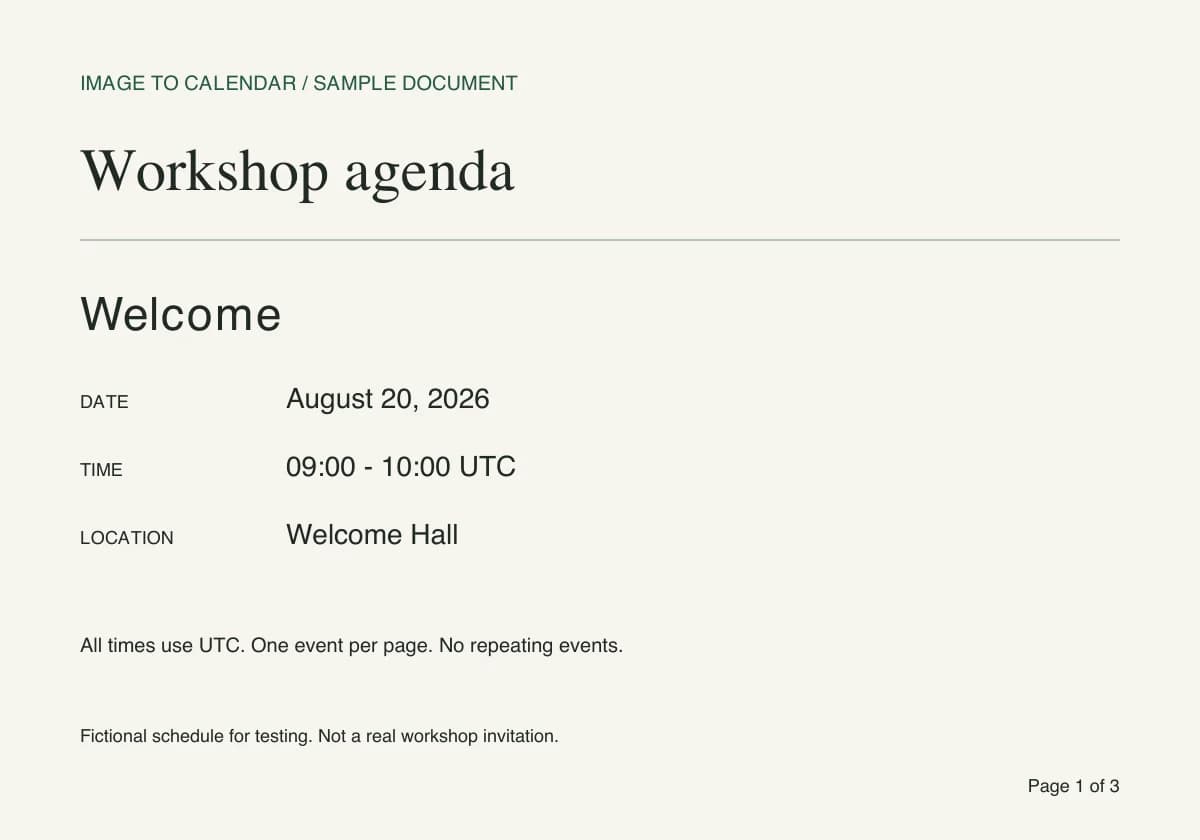
Compare this fictional three-page PDF with its matching reference ICS below. All dates are in 2026 and all times are UTC. These are prepared examples, not a live AI extraction result.
Sample PDF · page 1 of 3
Verifiable example
A PDF container does not guarantee readable text. Compare the source type first, then use page references to trace each extracted event back to the document.
| Check | Digital text PDF | Scanned PDF | Review decision |
|---|---|---|---|
| Text layer | Text can usually be selected | Each page is an image | Do not assume selectable text means the table order is correct |
| Visual quality | Sharp at high zoom | May be skewed, faint, or shadowed | Replace unreadable scans before conversion |
| Table structure | Columns may extract out of reading order | Lines and cells may merge visually | Compare dates and titles against the rendered page |
| Best use | Published agendas and timetables | Paper schedules saved as a PDF | Keep legends and timezone notes in the batch |
| Source page | Visible source | Extracted event | Verification |
|---|---|---|---|
| 1 | Workshop agenda | Welcome · Aug 20, 2026 · 09:00–10:00 UTC | Welcome Hall; title and time match page 1 |
| 2 | Afternoon sessions | Studio · Aug 20, 2026 · 13:00–14:30 UTC | Workshop Room; location matches page 2 |
| 3 | Closing program | Review · Aug 21, 2026 · 10:00–11:00 UTC | Review Room; date matches page 3 |
Choose a document no larger than 12 MiB with no more than 10 pages.
Use source-page details and confidence warnings to review each extracted event.
Select the events you want and download them together as one ICS file.
Review and download the ICS first: these calendar apps import the calendar file, not the original PDF. Choose your app below.
Import once into a separate calendar and check an event from each PDF page. Calendar apps may display UTC events in your local timezone. If you use our sample, look at August 20–21, 2026.
An imported ICS is a snapshot: later PDF changes will not sync automatically. Before importing a revised file, review or remove the old batch to avoid duplicate events.
The converter reads visible document content; it does not follow links or attachments inside the PDF.
Clear digital text or high-quality scans work better than faint, skewed, or heavily compressed pages.
Keep the page that explains abbreviations, terms, timezones, or recurring-week patterns.
Check events whose titles and dates are split across pages or columns before export.
PDF schedules range from clean digital agendas to scanned tables assembled from several sources. The best conversion workflow keeps page context, legends, and recurring patterns visible while you verify every event before export.
A digital PDF with selectable text is usually the easiest source, but selectable text is not required. Clear scans and exported images can also work when dates, times, and labels remain visually distinct. Before uploading, open the document at normal reading size and check for faint text, rotated pages, handwritten corrections, or security settings that prevent the pages from rendering. Re-scanning a blurred photocopy at a sensible resolution is often more useful than increasing the file size of an already damaged image.
Remove unrelated pages when practical, particularly cover sheets, terms, advertising, or blank scans. This keeps the relevant schedule within the 10-page processing limit and makes the review easier. Do not remove a legend, timezone note, academic calendar, or abbreviation key that explains the event table. The converter reads visible page content; it cannot follow embedded links, open attachments, or infer information that exists only behind a button in the original document.
Long agendas commonly separate event names, dates, speaker details, and room assignments across pages. Review the source-page value attached to extracted events and compare uncertain items with the page where they appeared. A page number is especially helpful when two sessions share a title or when a continued table begins without repeating its column headings. If the document has several schedules for different groups, use titles or notes to preserve which track, team, or class each event belongs to.
Watch for rows split by page breaks. A session title may appear at the bottom of one page while its time or location continues at the top of the next. Multi-column conference programs can also be read in an unexpected order if visual alignment is weak. The review screen is designed to make those cases editable. Correct the combined event rather than exporting two partial entries, and remove duplicated header rows that were never intended to become calendar events.
Timetables often compress recurring information into codes such as MWF, Week A, or Term 2. Keep the legend page in the PDF and translate each code during review. A weekly event needs the correct weekdays, local start and end times, timezone, and a sensible until date. Alternating-week schedules may be clearer as individual events when the source does not map cleanly to a standard recurrence rule. Never assume that identical time slots continue beyond the dates printed in the document.
All-day markers, registration deadlines, and multi-day events deserve separate attention. A date without a time should not automatically receive a guessed hour, while a conference spanning several days may need one multi-day entry or several daily sessions depending on the source. Locations can include a building, room, online link, or meeting point. Preserve useful details in the event notes when they do not fit naturally into the title or location field.
After comparing the extracted list with the PDF, select only the events you intend to import. Give the calendar a descriptive name and download one standard ICS file. Importing into a temporary or separate destination calendar makes it easier to inspect the result and remove the entire batch if necessary. Spot-check events from different pages, including at least one recurring event and one entry that originally crossed a page or column boundary.
The PDF upload can be up to 12 MiB and 10 pages, with up to 100 events returned from one conversion. These limits keep a review manageable; they are not a reason to combine unrelated schedules into one file. An imported ICS is a one-time snapshot and will not track later revisions to the PDF. If the publisher issues a new version, compare the changes, edit the imported events manually, or run a new conversion and avoid creating duplicates.
If a document exceeds 10 pages or mixes several independent calendars, create smaller PDFs organized by date range, track, team, or location. A conference program might be split by day, while a school handbook should be reduced to the pages that actually contain term dates and events. Preserve the title page or legend in each batch when it establishes the year, timezone, or abbreviation rules. Smaller batches make source-page references more meaningful and reduce the chance of overlooking a duplicate row.
Name each exported ICS according to its scope before importing, such as Conference Day 1 or Spring Term Exams. Import one batch at a time and verify it before continuing with the next. This staged approach is safer than combining hundreds of uncertain entries and attempting cleanup afterward. If a password, form, or embedded viewer controls access to the original PDF, obtain a permitted downloadable copy rather than trying to bypass those controls; the converter only works with a file you are authorized to upload.
Nothing is sent to your calendar until you have checked the extracted result.
A PDF can be up to 12 MiB and contain up to 10 pages.
Yes. Events extracted from the processed pages can be reviewed together and downloaded in one ICS file.
No. The service can read visible schedule details from digital PDFs and scans, although clear text improves the result.
No. Uploaded bytes are handled in request memory and are not written to permanent file storage by this app.